Appearance
浏览器插件
插件是基于Web技术构建的,例如HTML、JavaScript和CSS。它们在单独的沙盒执行环境中运行并与Chrome浏览器进行交互。
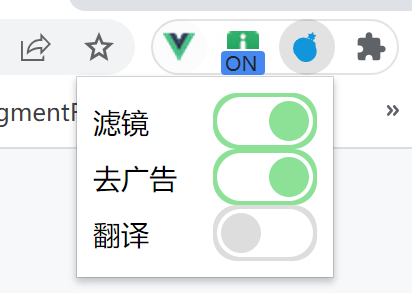
配置文件
manifest.json文件,是插件的配置文件,说明了插件的各种信息;它的作用等同于小程序的app.json和前端项目的package.json。
json
{
  // 插件名称
  "name": "adfree-l",
  // 插件的描述
  "description" : "去广告",
  // 插件的版本
  "version": "1.0",
  // 配置插件程序的版本号,MV3。2已弃用
  "manifest_version": 3,
  //  描述插件图标的大小和文件路径。
  "icons": {
    "16": "./public/images/icon_16.png",
    "32": "./public/images/icon_32.png",
    "48": "./public/images/icon_48.png",
    "128": "./public/images/icon_128.png"
  },
  // 权限用于允许扩展程序在指定的标签页上执行脚本。
  "permissions": [
    "activeTab", "scripting", "storage", "tabs"
  ],
  // 点击小图标出来的弹窗
  "action": {
    // 指定鼠标悬停在按钮上时显示的默认标题。
    "default_title": "自定义标题",
    "default_popup": "./src/popup.html"
  },
  // 静态注入。
  "content_scripts": [
    {
      "matches": ["http://*/*", "https://*/*"],
      // "matches": ["<all_urls>"], 表示匹配所有地址
      "js": ["src/main.js"],
      "css": ["base.css"]
    }
  ],
  // 只有在被需要的时候会被加载, 监听一些浏览器自带的操作。
  "background": {
    "service_worker": "background.js"
  },
  // 插件所需的主机权限。
  "host_permissions": [
    "<all_urls>"
  ]
}- popup.html
js
<!DOCTYPE html>
<html lang="en">
<head>
  <meta charset="UTF-8">
  <style>
    ul, li {
      list-style: none;
      margin: 0;
      padding: 0;
    }
    li {
      display: flex;
      align-items: center;
    }
    li>span {
      width: 60px;
      text-align: left;
    }
    .switch {
      position: relative;
    }
    .toggle {
      position: absolute;
      margin-left: -9999px;
      visibility: hidden;
    }
    .toggle + label {
      display: block;
      position: relative;
      cursor: pointer;
      outline: none;
      user-select: none;
    }
    input.toggle-round-flat + label {
      padding: 2px;
      width: 48px;
      height: 24px;
      background-color: #dddddd;
      border-radius: 12px;
      transition: background 0.4s;
    }
    input.toggle-round-flat + label:before,
    input.toggle-round-flat + label:after {
      display: block;
      position: absolute;
      content: "";
    }
    input.toggle-round-flat + label:before {
      top: 2px;
      left: 2px;
      bottom: 2px;
      right: 2px;
      background-color: #fff;
      border-radius: 12px;
      transition: background 0.4s;
    }
    input.toggle-round-flat + label:after {
      top: 4px;
      left: 4px;
      bottom: 4px;
      width: 20px;
      background-color: #dddddd;
      border-radius: 10px;
      transition: margin 0.4s, background 0.4s;
    }
    input.toggle-round-flat:checked + label {
      background-color: #8ce196;
    }
    input.toggle-round-flat:checked + label:after {
      margin-left: 24px;
      background-color: #8ce196;
    }
  </style>
</head>
<body>
  <ul id="switchs">
    <li>
      <span>滤镜</span>
      <div class="switch">
        <input
          id="toggle-1"
          class="toggle toggle-round-flat"
          type="checkbox"
          name="filter"
        >
        <label for="toggle-1"></label>
      </div>
    </li>
    <li>
      <span>去广告</span>
      <div class="switch">
        <input
          id="toggle-2"
          class="toggle toggle-round-flat"
          type="checkbox"
          name="advertising"
        >
        <label for="toggle-2"></label>
      </div>
    </li>
    <li>
      <span>翻译</span>
      <div class="switch">
        <input
          id="toggle-3"
          class="toggle toggle-round-flat"
          type="checkbox"
          name="translate"
        >
        <label for="toggle-3"></label>
      </div>
    </li>
  </ul>
</body>
<script src="./popup.js" type="module"></script>
</html>数据存储
chrome.storage.local和chrome.storage.sync。其中,chrome.storage.local 存储的数据只在当前计算机上有效,而 chrome.storage.sync 存储的数据可以在用户使用 Chrome 浏览器时,在多台计算机和设备上同步。也可用indexedDB
- chrome.storage.local存储的数据最大不能超过 5MB, chrome.storage.sync 有存储空间限制(通常为 100KB)
- 存储数据的读写是异步的,因此需要使用回调函数处理返回值。
- chrome.storage.local和chrome.storage.sync使用方法相同。
| 方法 | 描述 | 使用 |
|---|---|---|
| get() | 获取存储数据 | chrome.storage.local.get(key, function(data) {console.log('Retrieved data:', data.key);}) |
| set() | 用于存储数据 | chrome.storage.local.set({key:value}, function() {if (chrome.runtime.lastError) {} else {console.log('Data saved.')};}) |
| remove() | 删除数据 | chrome.storage.local.remove(key, function() {console.log('Key removed');})chrome.storage.local.remove([ key1, key2], function() {console.log('Keys removed');}) |
| clear() | 清空存储空间 | chrome.storage.local.clear(function() {console.log('All data removed');}) |
| getBytesInUse() | 用于获取本地存储中已使用的字节数。 | chrome.storage.local.getBytesInUse(null, function(bytes) {console.log(bytes);}) |
API
通信
chrome.runtime.sendMessage
js
// popup.js
chrome.runtime.sendMessage({
  message: 'msg',
},
(response) => {
  if (response && response.result === 'success') {
    console.log('发送并操作成功');
  }
});

// background.js
chrome.runtime.onMessage.addListener((request, sender, sendResponse) => {
  if (request.message === 'msg') {
    // 执行异步操作,完成后返回信息
    sendResponse({ result: 'success' });
  }
  // 有异步操作时: 返回 true 保持消息端口打开
  return true;
});动态注入
js
function injectedFunction () {
   console.log('hello world');
}
chrome.action.onClicked.addListener((tab) => {
  // 注入
  chrome.scripting.executeScript({
    target: { tabId: tab.id },
    // files: ['inject.js'],
    function: injectedFunction
  });
  chrome.scripting.insertCSS({
    target: { tabId: tab.id },
    // files: ['inject.css'],
    css: `body {
      filter: grayscale(.95);
    }`,
  });
  // 移除
  chrome.scripting.removeScript({
    target: { tabId: tab.id },
    allFrames: true
  }, () => {
    console.log('脚本移除成功');
  });
  chrome.scripting.removeCSS({
    target: { tabId: tab.id },
    css: `body {
      filter: grayscale(.95);
    }`,
  });
});标签管理
- 工具栏图标按钮的点击事件
js
chrome.action.onClicked.addListener(() => {
  // 处理按钮点击事件的逻辑
  console.log('按钮被点击');
});- 获取标签页
js
// 当前标签,如果获取所有标签移除`active`、`currentWindow`属性
chrome.tabs.query({ active: true, currentWindow: true }, function(tabs) {
  if (tabs.length > 0) {
    const tabId = tabs[0].id;
  }
});- 创建标签
js
chrome.tabs.onCreated.addListener((tab) => {
  console.log('标签页被创建', tab);
});- 切换标签页,获取当前活动tabId
js
chrome.tabs.onActivated.addListener((activeInfo) => {
  console.log(activeInfo.tabId);
});- 判断标签页的加载状态和活动状态。
js
chrome.tabs.onUpdated.addListener((tabId, changeInfo, tab) => {
  if (changeInfo.status === "complete" && tabId === currentTabId && tab.active) {
    // 当前标签页已加载完毕且仍然是活动的标签页,表示没有真正离开
    console.log("仍在当前标签页");
  } else {
    // 离开了当前标签页
    console.log("离开了当前标签页");
  }
});拦截
- 指定了
webRequest和webRequestBlocking权限,以及<all_urls>权限
js
// background.js
chrome.webRequest.onBeforeRequest.addListener(
  (details) => {
    if (details.url.includes("ad");) {
      return { cancel: true };
    }
  },
  { urls: ['https://*/*'] },
  ["blocking"]
);调试
谷歌浏览器,右键点击你的插件图标,选择"检查"或"审查元素"。这将打开开发者工具。 最新版本的谷歌浏览器,"Storage"面板中不再显示 chrome.storage.local 存储区域。